Quantity breaks that raise average order value
How to set up quantity breaks on Shopify, which tiers and discounts to start with, and how to handle products with sizes.
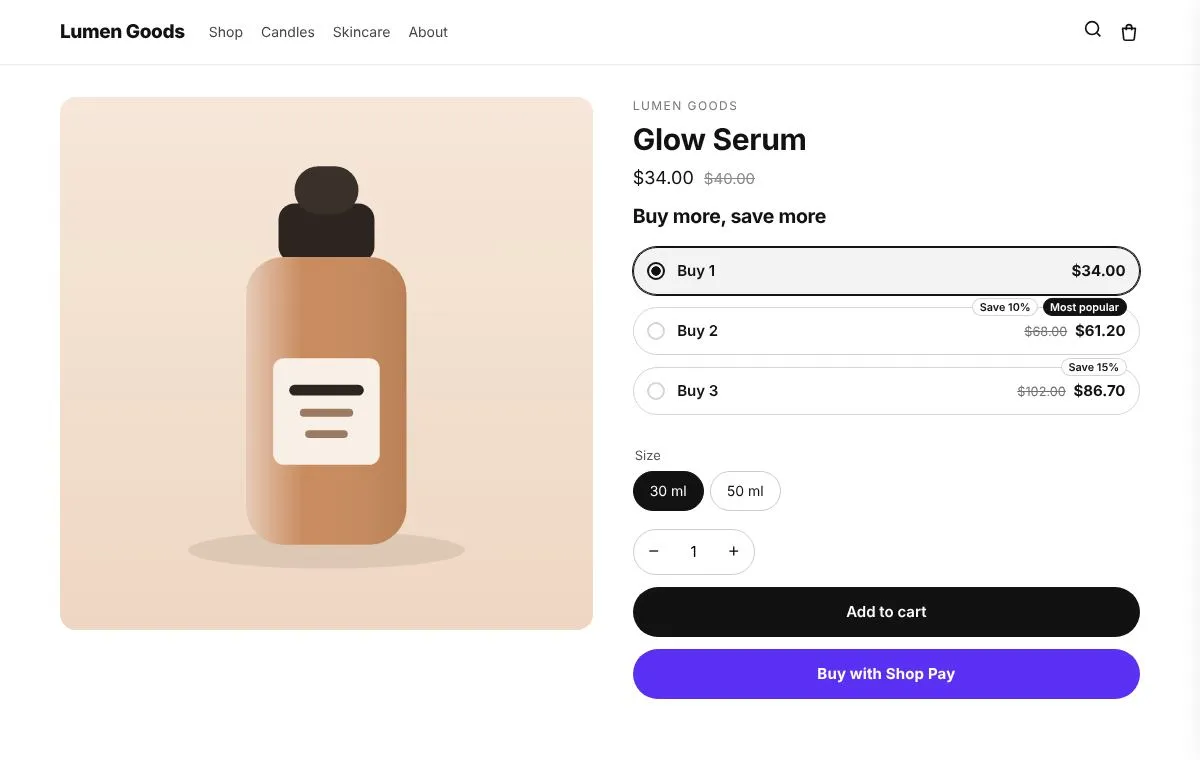
Quantity breaks raise average order value by giving shoppers a clear reason to buy two or three instead of one: Buy 2, save 10%; Buy 3, save 15%. They work best on products people use up or give as gifts. Below is how to choose the tiers, how to set them up on Shopify with CRO Toolbox, and what to do with products that come in sizes.
What are quantity breaks?
They are tiers shown on the product page, usually as selectable rows or cards. Each tier sets a quantity and a discount, and one is often marked “Most popular”. The shopper picks a tier, which sets the quantity, and adds to cart as usual.
Which tiers should I start with?
- Two or three tiers. Buy 1, Buy 2 and Buy 3 is easy to read.
- Small steps. 10% for two and 15% for three is a common start.
- A badge on the tier you want. “Most popular” on Buy 2 makes the choice easier.
- Products people buy again. Consumables, basics, gifts and multipacks.
Avoid deep discounts on your best sellers before you’ve seen how shoppers react.
How do I set them up with CRO Toolbox?
- Open Offers → Upsell offers and create an offer.
- Choose which products get it: all products, specific products or products in collections.
- Add the tiers: quantity, discount and an optional label and badge.
- Open Design to pick a look: cards or a grouped list, the wording of the offer and the saving, colours, corners and spacing.
- Click Add to theme and place the block above your Add to cart button.
When the shopper picks a tier, it sets the quantity on your normal Add to cart button. At checkout the discount applies to that product once the cart reaches the tier’s quantity, and different variants of the same product count together.
What about products with sizes?
Two options:
- A size per item. Keep Let shoppers pick a size for each item on. Choosing Buy 2 then shows a size picker for each item, so one shopper can take an M and an L and still get the tier discount.
- Size upgrades. Switch the offer to Size upgrade and put the tiers on one option, for example M, L saves 10%, XL saves 20%. Picking a tier switches the product to that size using your theme’s own size picker.
Should I combine quantity breaks with other offers?
Yes, with care. A cross sell under the buy button and a free shipping bar in the cart work well alongside quantity breaks. Avoid stacking several discounts on the same product; one clear offer per product page is easier to understand.
How do I measure the result?
Watch average order value and the share of orders with two or more units of the product. CRO Toolbox’s Analytics shows sales from each offer; on the Growth plan and above, the holdout test keeps a share of shoppers without app widgets so you can compare.
Quick checklist
- Two or three tiers, small steps
- A badge on the tier you want most shoppers to choose
- A size per item for apparel
- One clear offer per product
- A test order to check the price at checkout